Platform updates: Games on teams, one comment thread and tactics boards to share
Build the teams when you create a game, and let people take their own spots. Comments work the same way on events, posts, drills and plans. A tactics board can be shared with a link that anyone can open, a training session can move itself on to the next drill, and you can pay with Apple Pay or Google Pay.
On your phone, close Spike fully and open it again. That downloads the update. If something here is missing after that, update Spike from the App Store or Google Play first.
Build the teams when you create a game
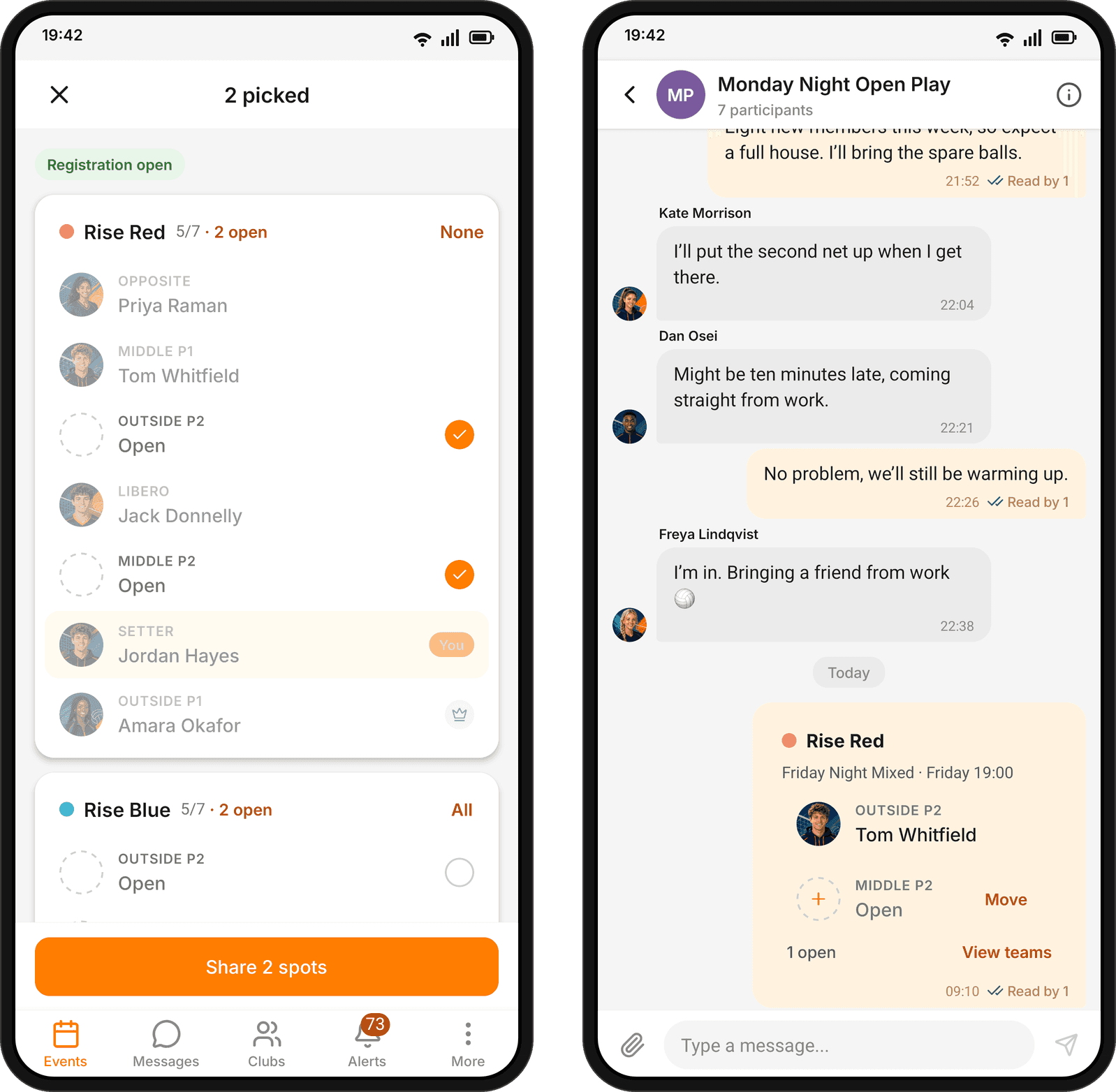
Creating a casual game now asks how people take part: on one list, or on teams. Give each team named positions or a number of open spots, from 2 to 12. Pick a colour, and name a captain if you like, even before you know where they will play.
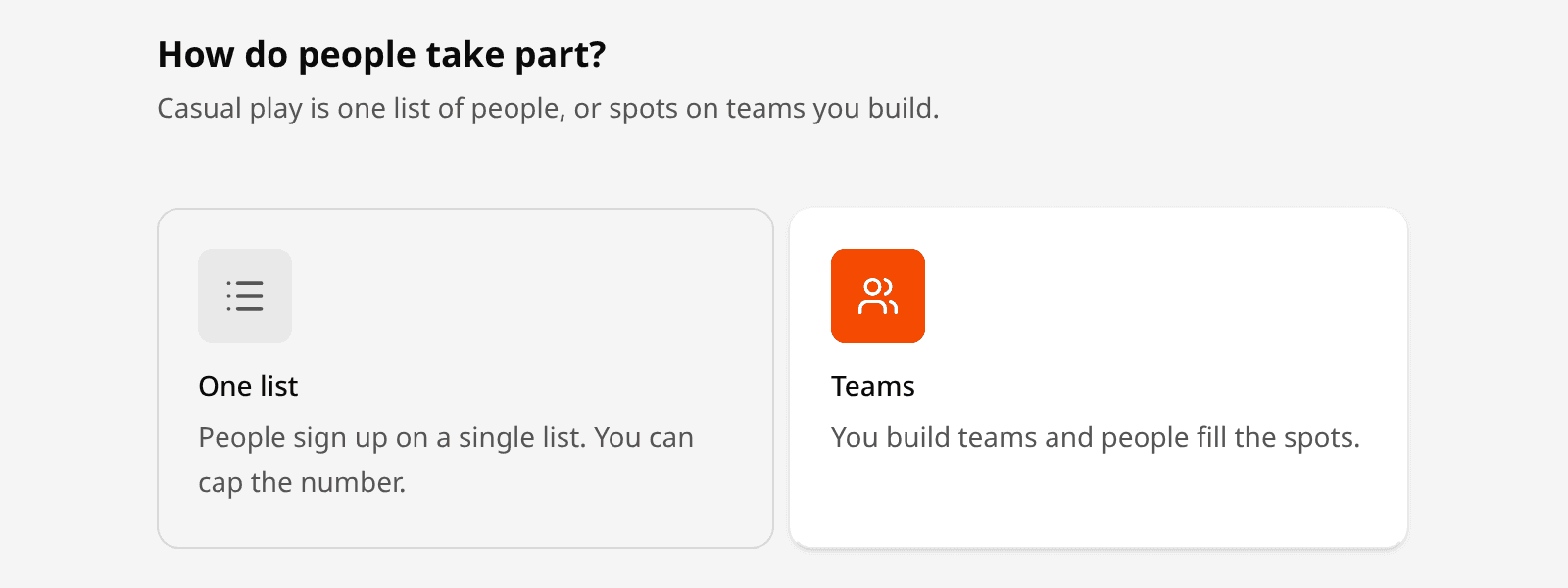
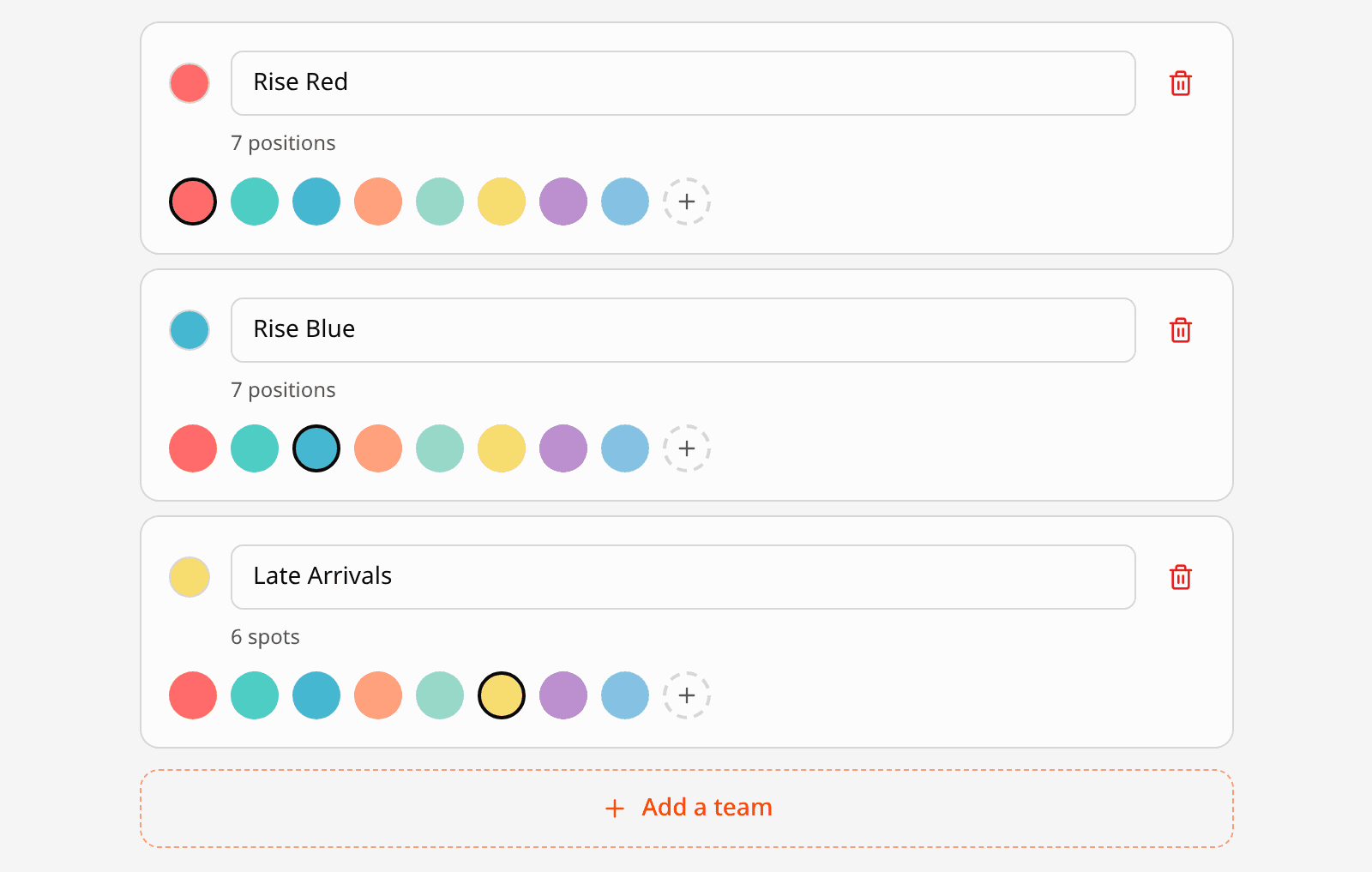
On the phone you place people on spots while you build the teams. On the web you add the teams when you create the game, then place people from the event’s Teams tab. You can also skip the step and add teams later.
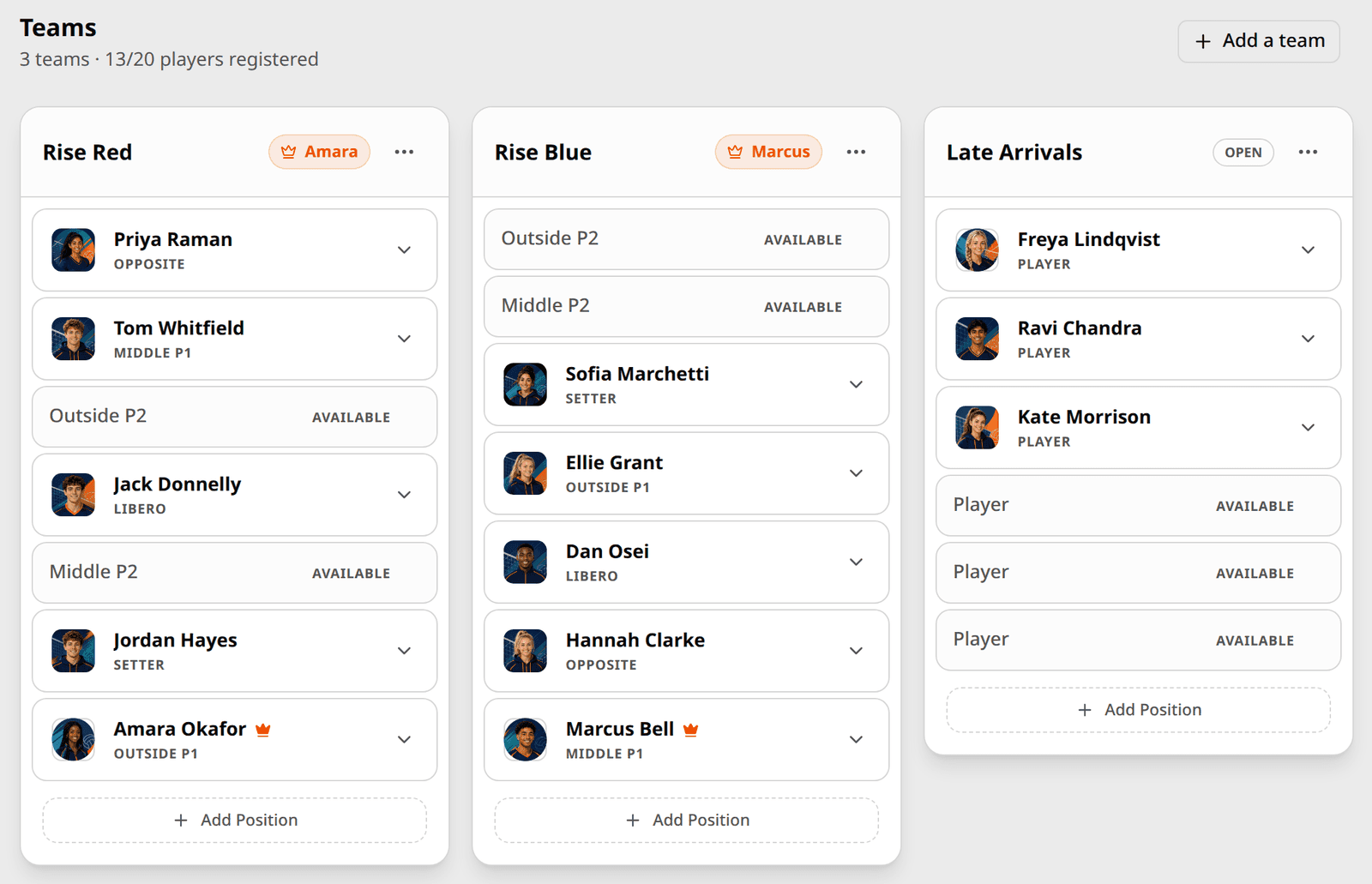
Everyone sees who holds each spot. Take an open one, or move to another, in a tap. Organisers and team captains can place, swap and remove people right from the team. Spots update live for everyone, on the web and on the phone, and the Full badge follows the spots, not how many people were invited.
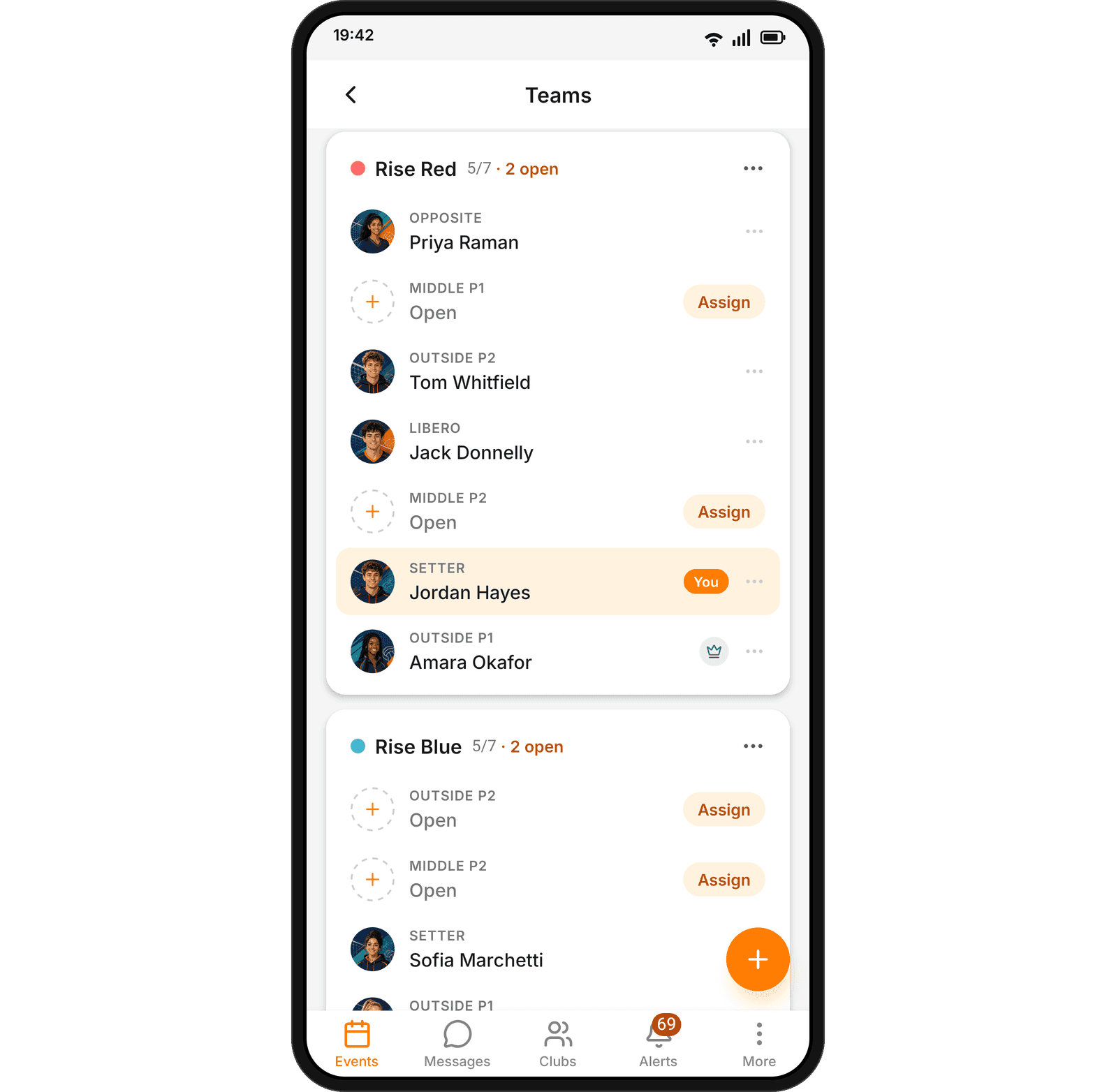
Still a few spots to fill? Organisers and captains can pick the open ones and send them to a chat, and people take a spot straight from the message. On a game you pay to join, the spot you choose is held for five minutes while you pay, so nobody takes it from under you.
Open or closed, and who can see it
Every event except a match now has a Joining step. Open means people who can see the event add themselves, or take a spot. Closed means only the people you invite or place are on it. It starts Closed and never changes by itself, and you can change it later in the event’s settings.
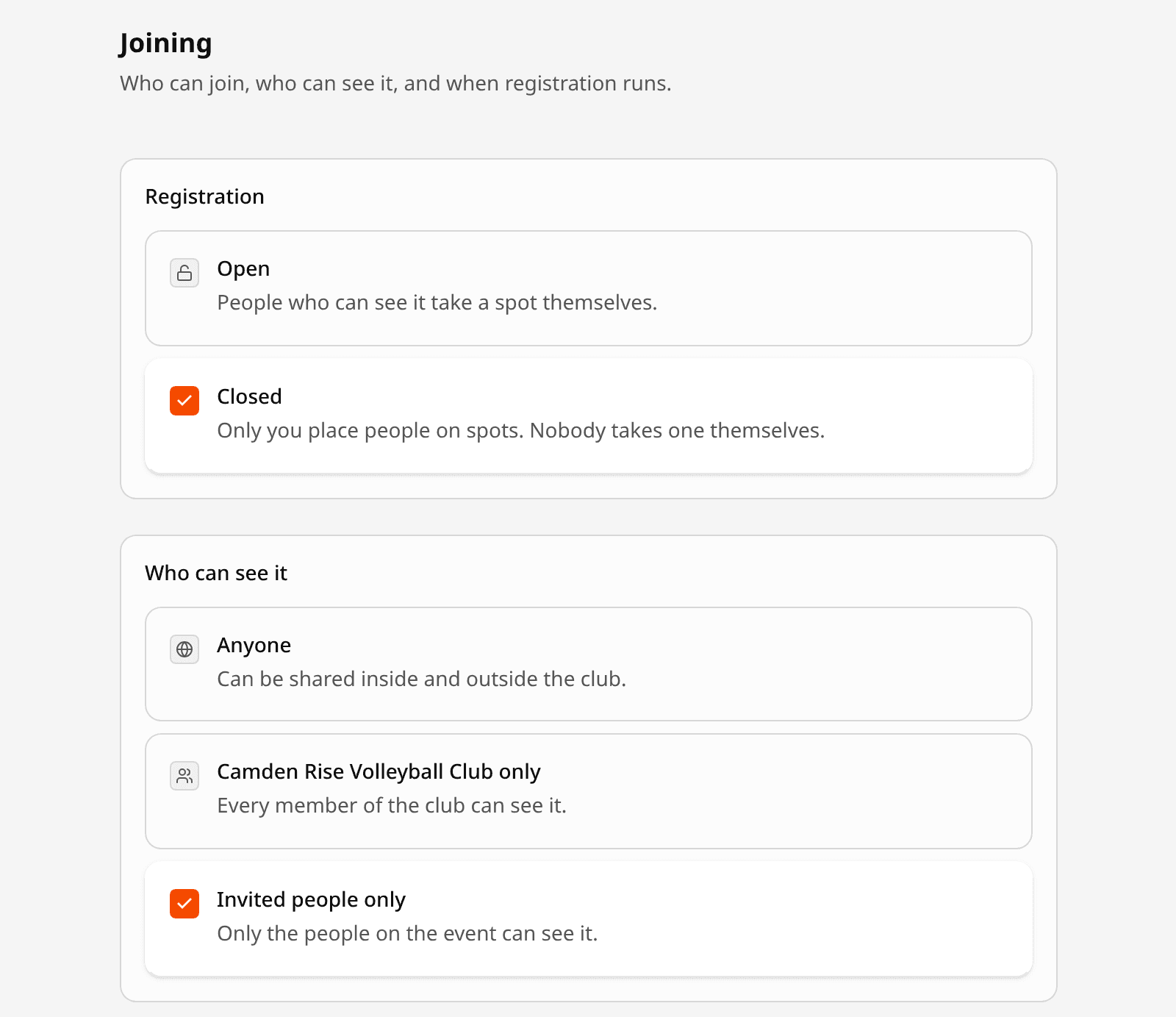
You also choose who can see an event: anyone, only the club, team or group it is for, or only the people invited. A public event that is closed says it is by invitation, instead of showing a Join button that cannot work.
Creating an event no longer invites anyone by itself. Pickers open for who to invite and who hosts, with each team’s or group’s players and staff in their own sections and a Select all on each.
One comment thread everywhere
Events, posts, drills and training plans now share the same comments, on the web and on the phone. Attach up to six photos or files, mention people with @, and reply to a reply: it stays in one thread, with a note of who you answered. Edit your comment in place, and report one that should not be there.
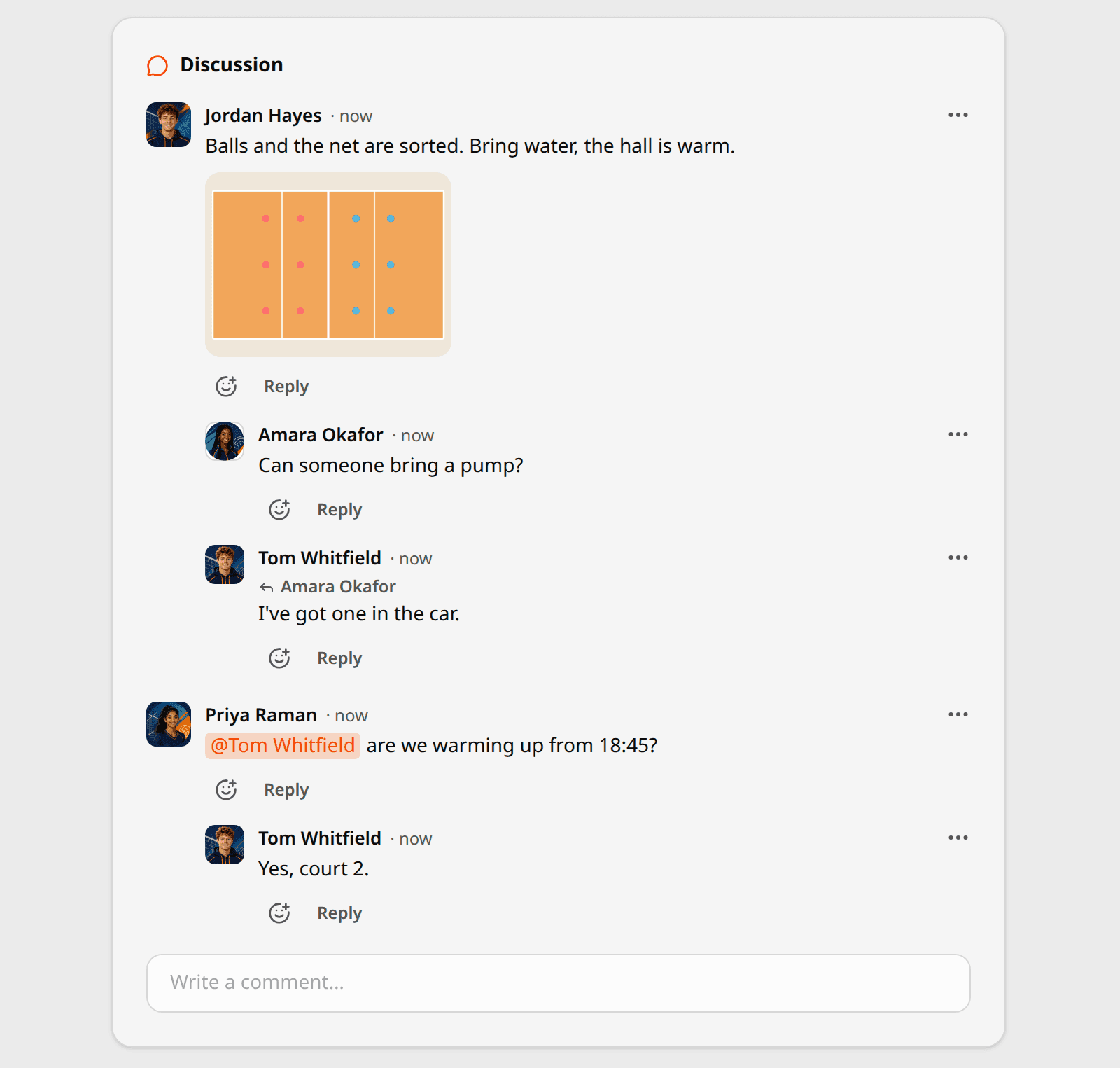
On the phone, an event’s comments sit on the event page, oldest to newest, with the box at the bottom. Drills, training plans and an event’s training screen have comments in the app too.
Share a tactics board with a link
Coaches can share a tactics board by link, from the web or from the app. Anyone with the link can open it without an account, play it through and keep a copy. On a phone with Spike installed, the link opens in the app.
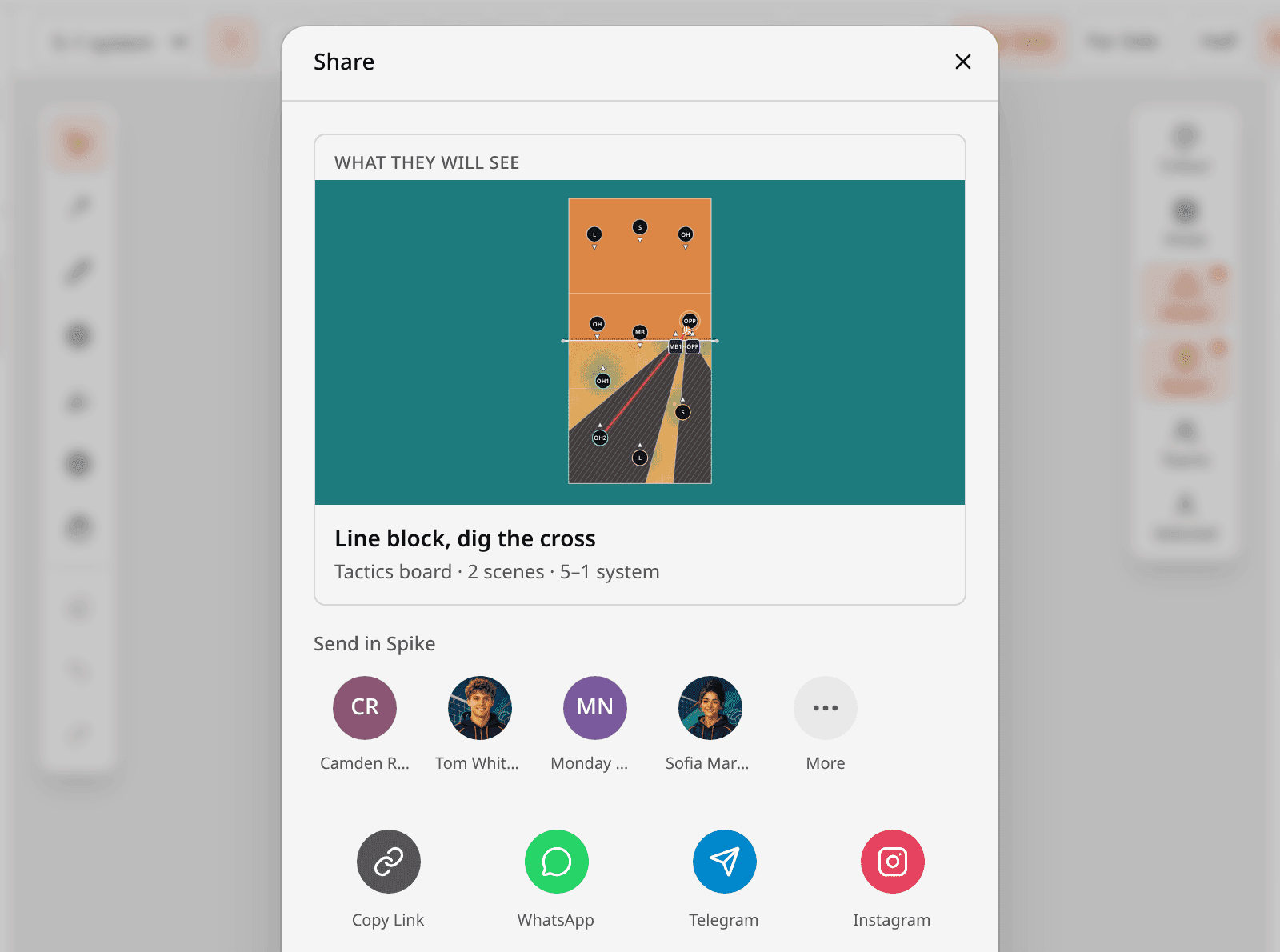
Send it to a Spike chat, copy the link, or pass it to another app. Pasted into a chat, the link shows a card with the board’s name and the court on it.
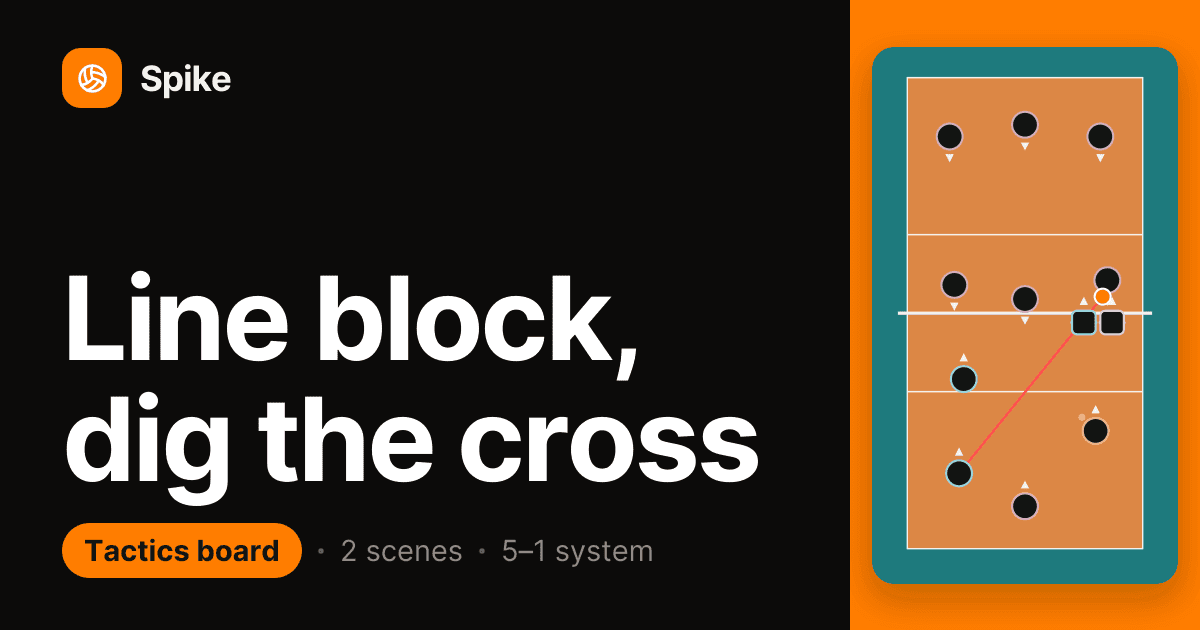
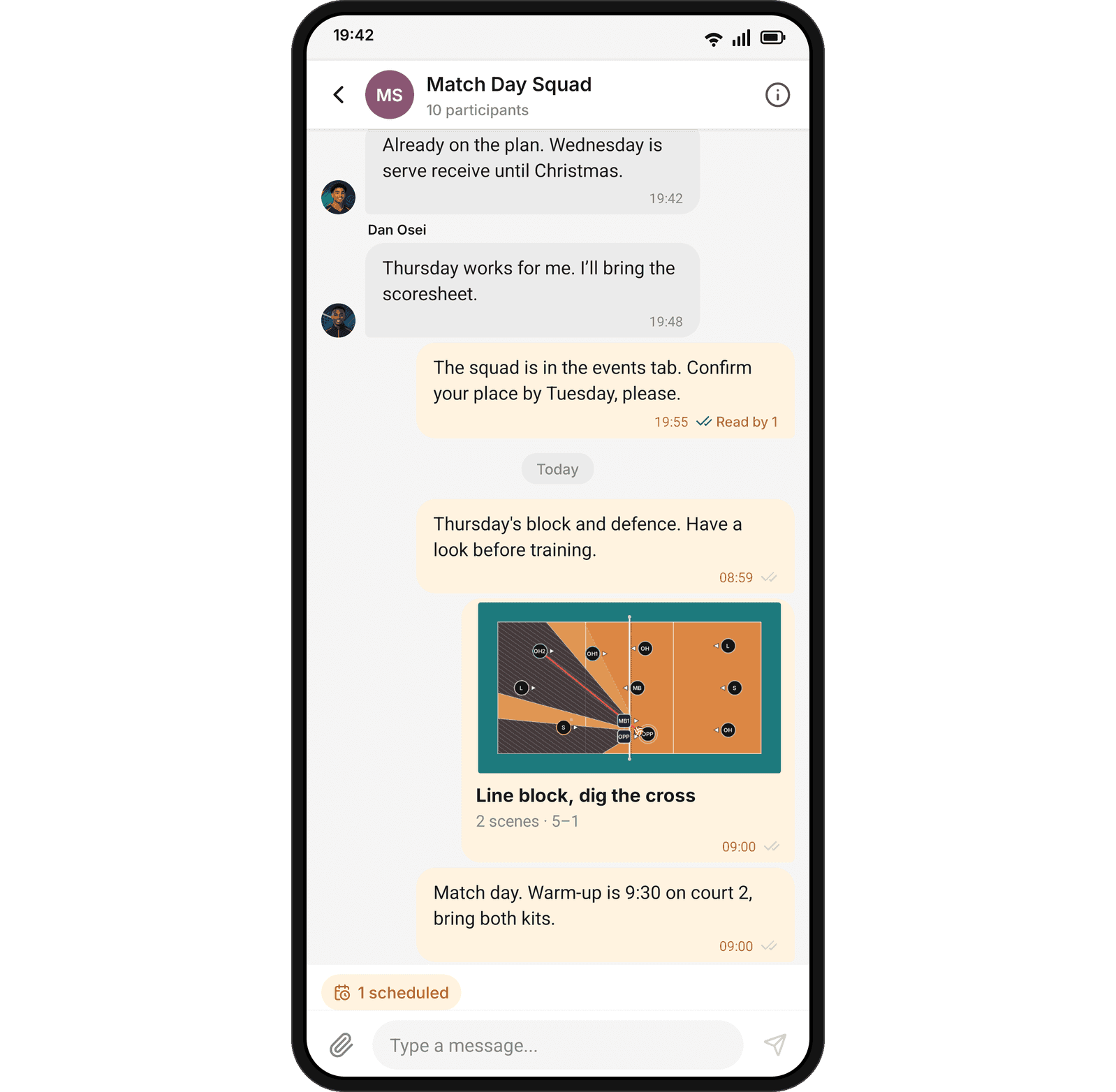
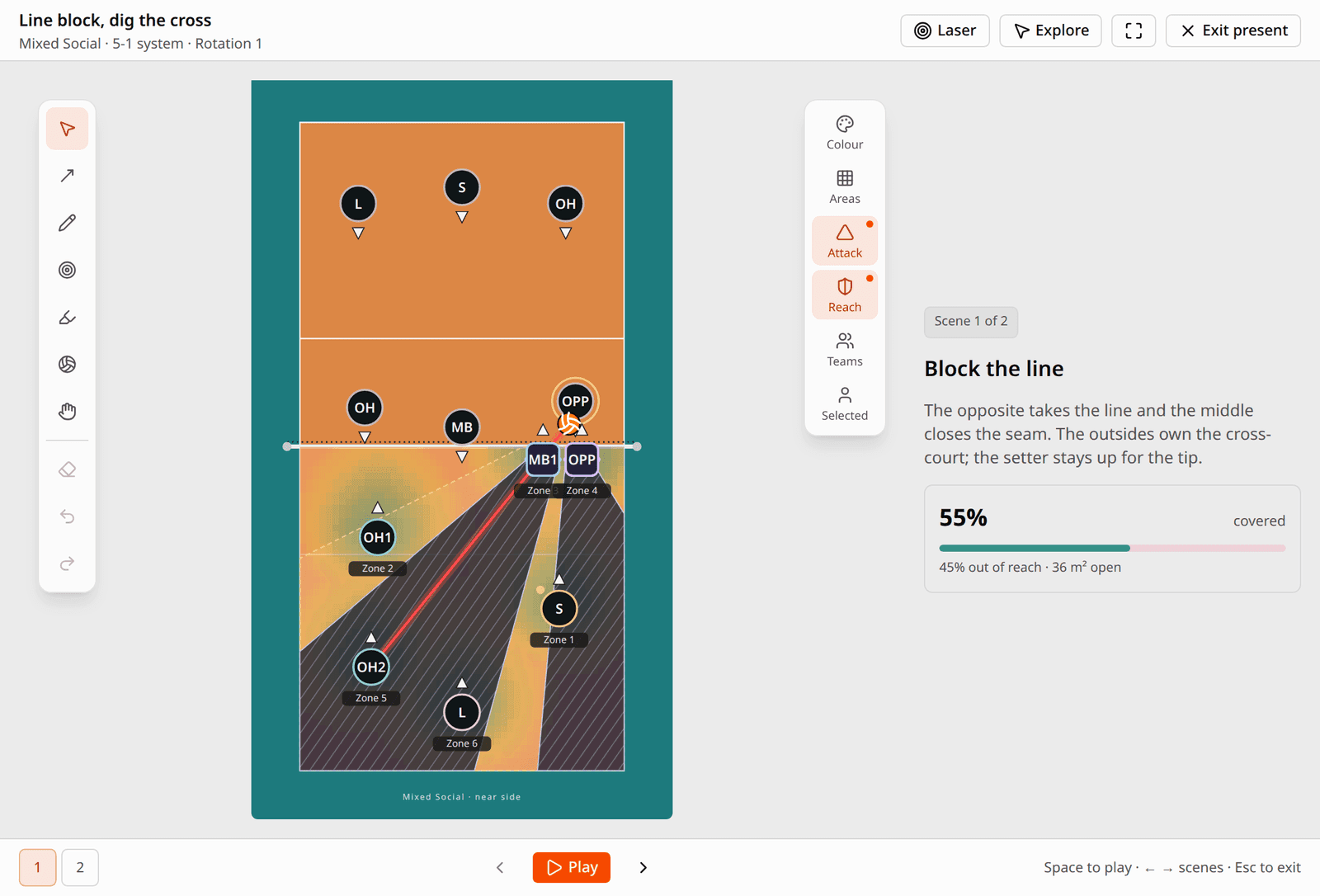
The link shows the board as it was last saved. Players appear by position, without their names or photos. Stop sharing and the link switches off.
Tactics boards are on the phone now as well. Open yours from Coaching, play and present them with a laser pointer, and edit them there: move players, draw arrows and highlights, and show the attack, block and reach drawings.
And you no longer need an account to try it. Anyone can open the tactics board and play with the starter boards, in a phone’s browser too. Signing up to save brings the board you were drawing with you.
A session that moves itself on
Coaches running a session can turn on Auto-advance: each drill moves on to the next when its time is up, even with every phone locked, and the last one waits for Finish. When a step’s time runs out, the phone running the session alerts you on the lock screen and on your watch, with a Next drill button that works without opening the app.
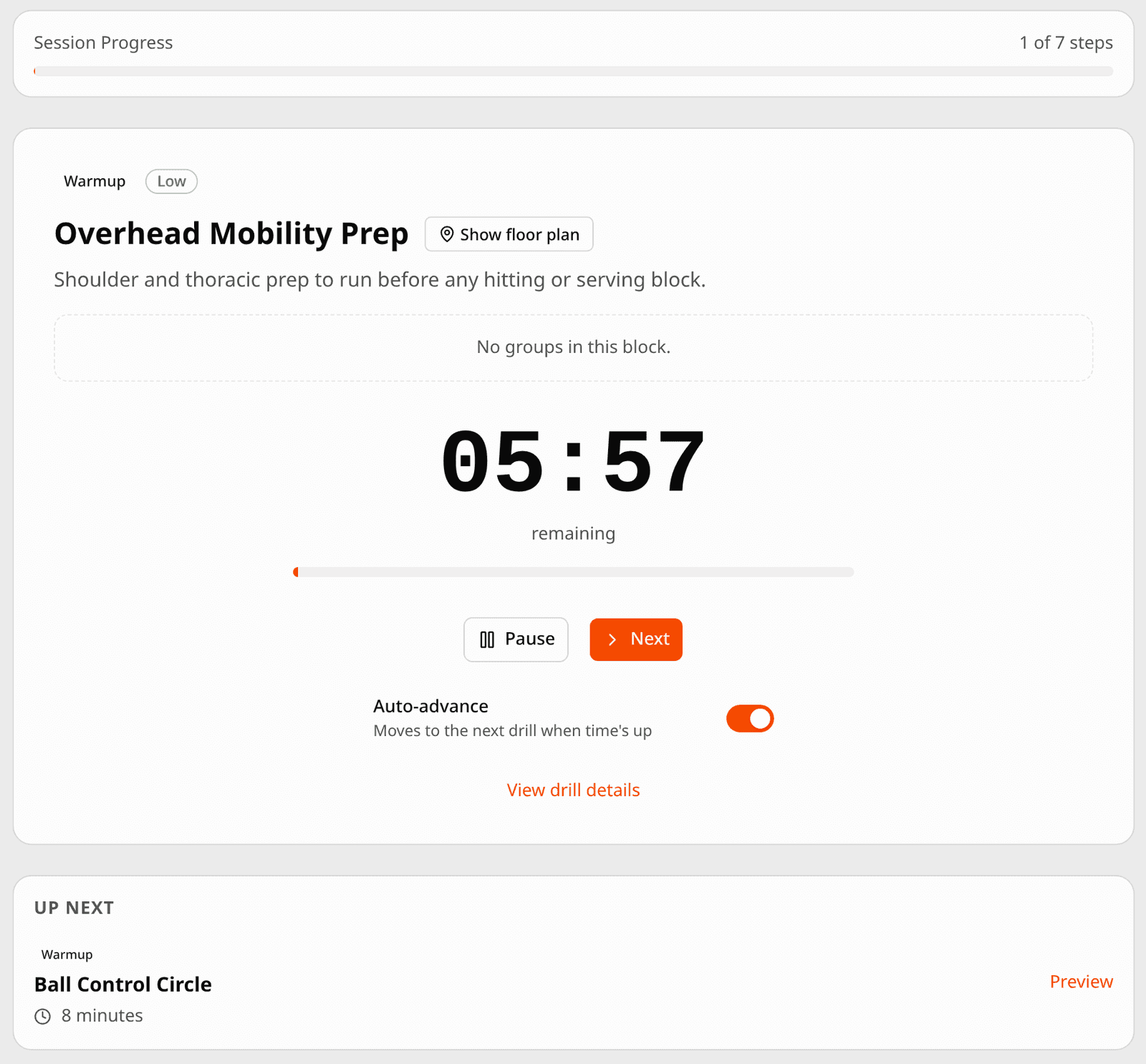
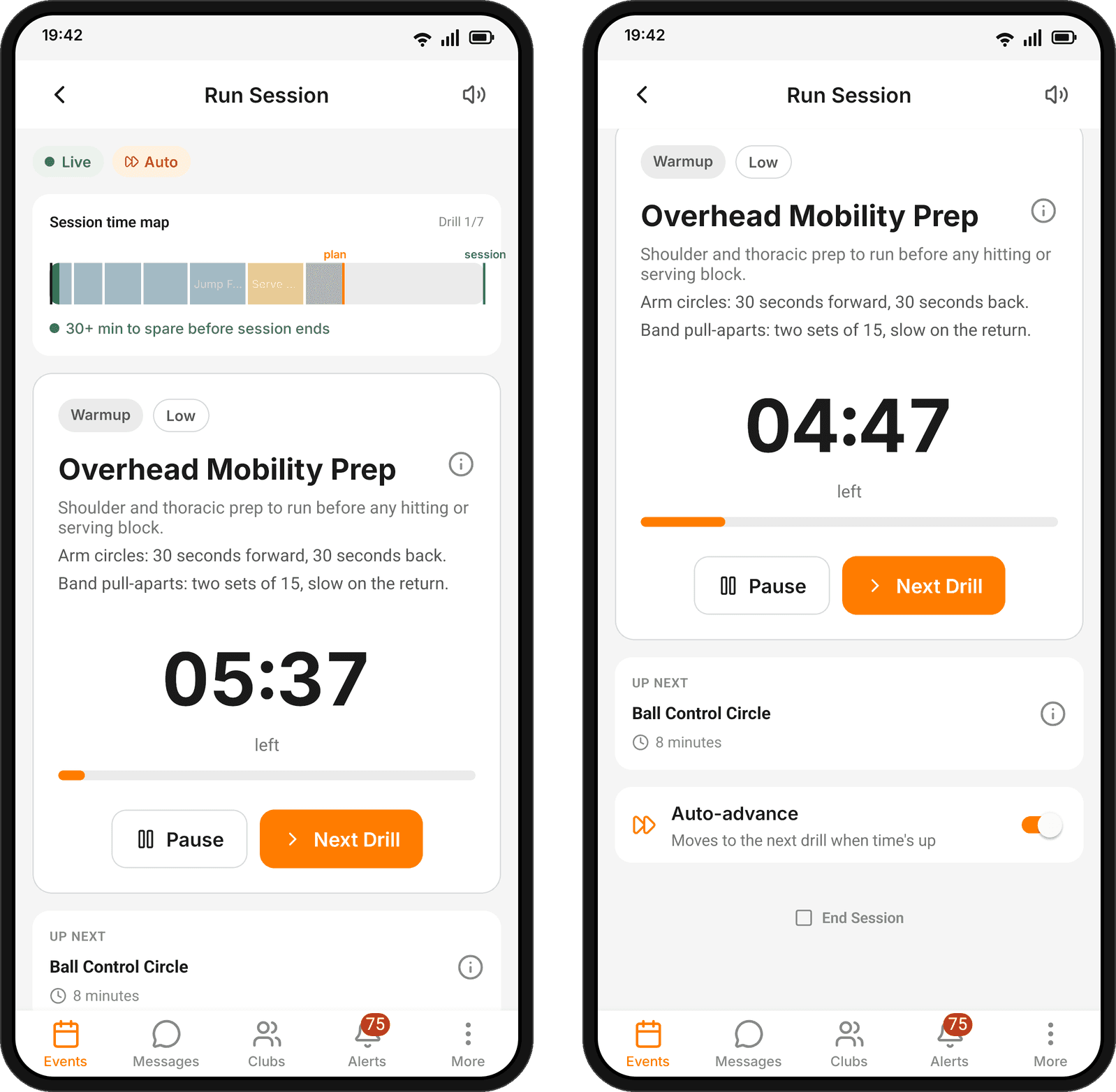
The web and every coach’s phone now follow the same live session. Go back a step, confirm before ending, and resume a session ended by mistake. The plan, its drills and the running clock stay on screen when the gym has no signal.
Send a message without sound, or later
In any chat, long-press the send button on the phone, or right-click it on the web. Send without sound delivers the message with a notification that makes no sound, for the late-night note that can wait until morning. Schedule message sends it at the time you pick.
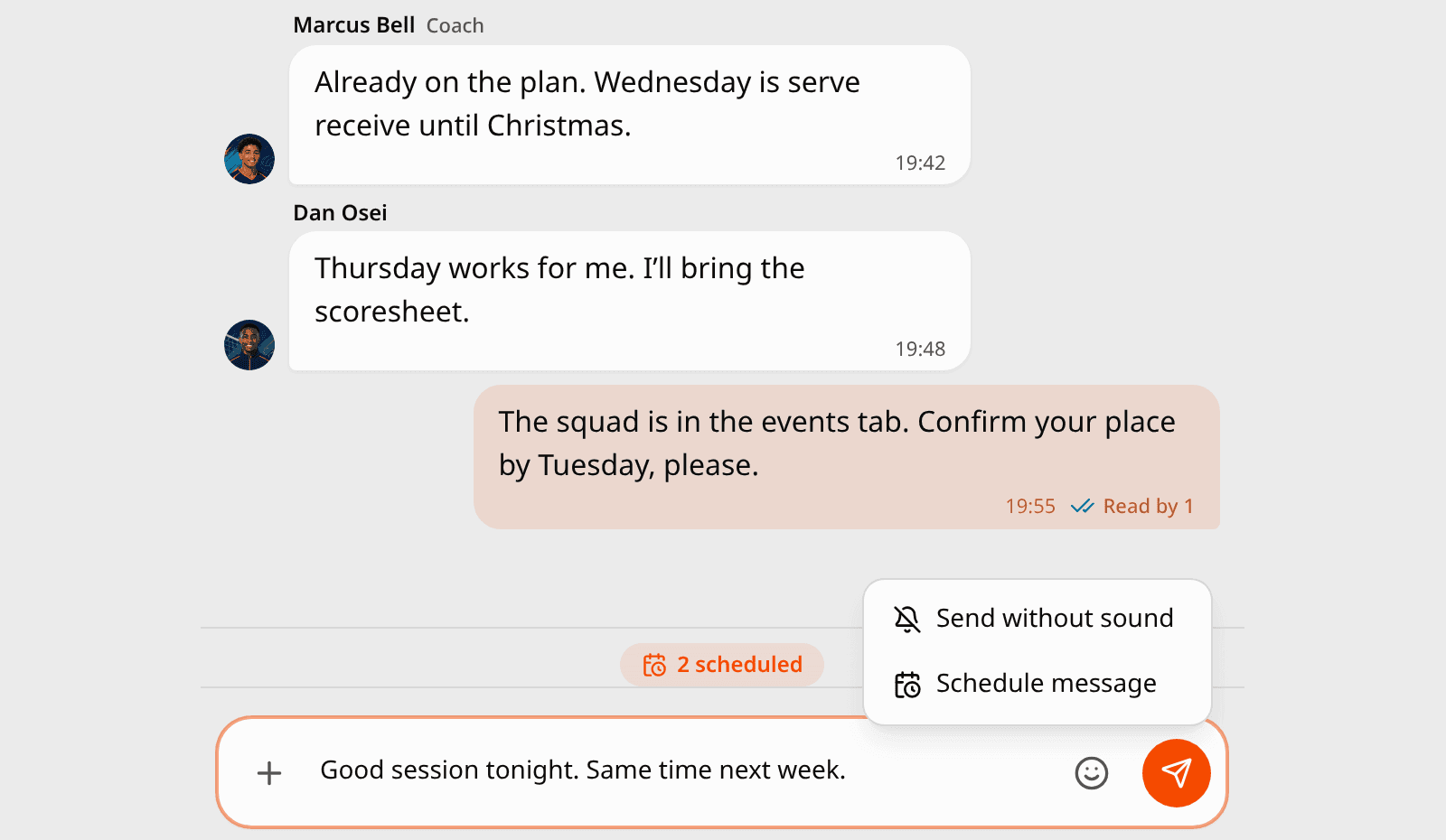
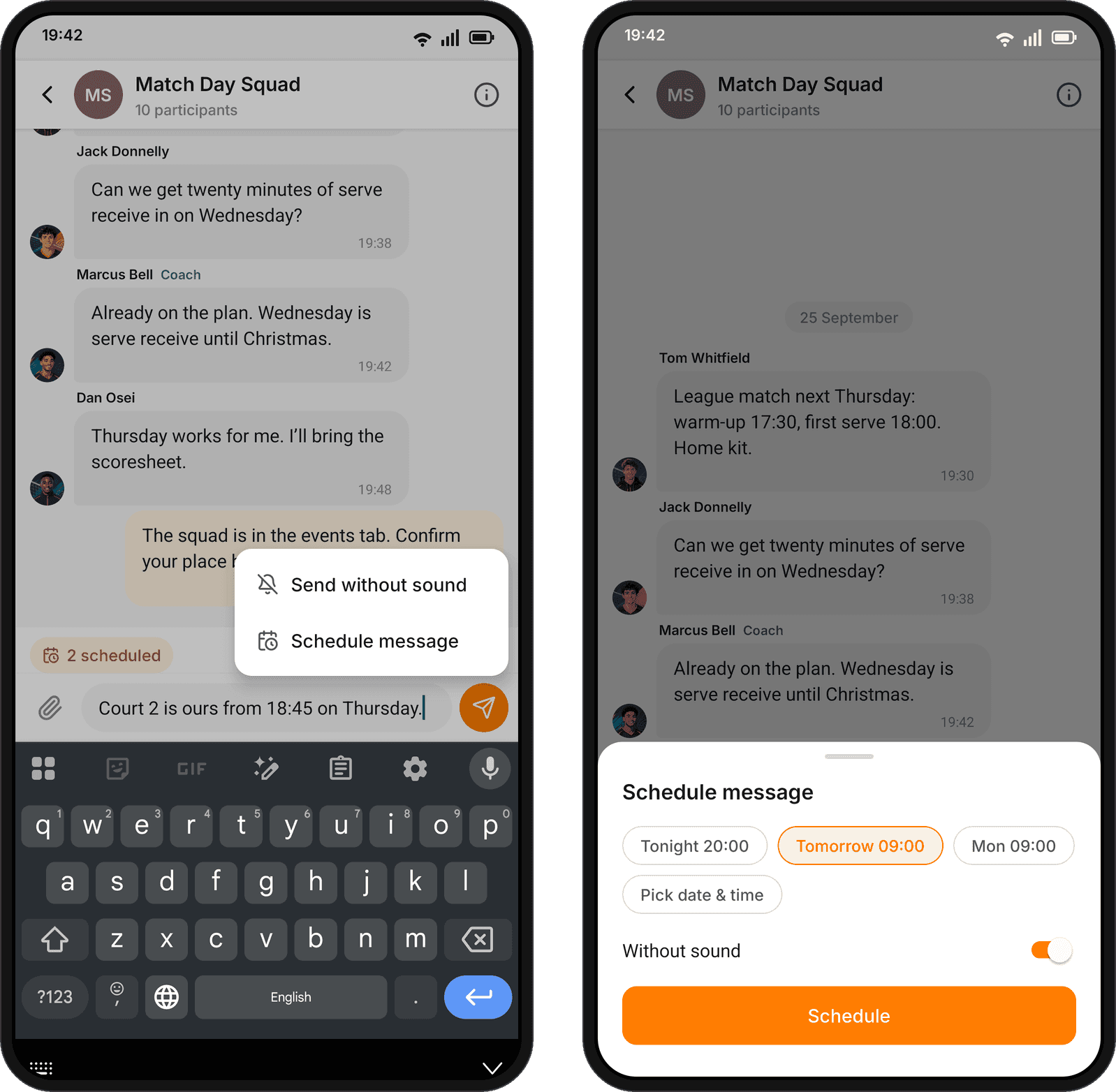
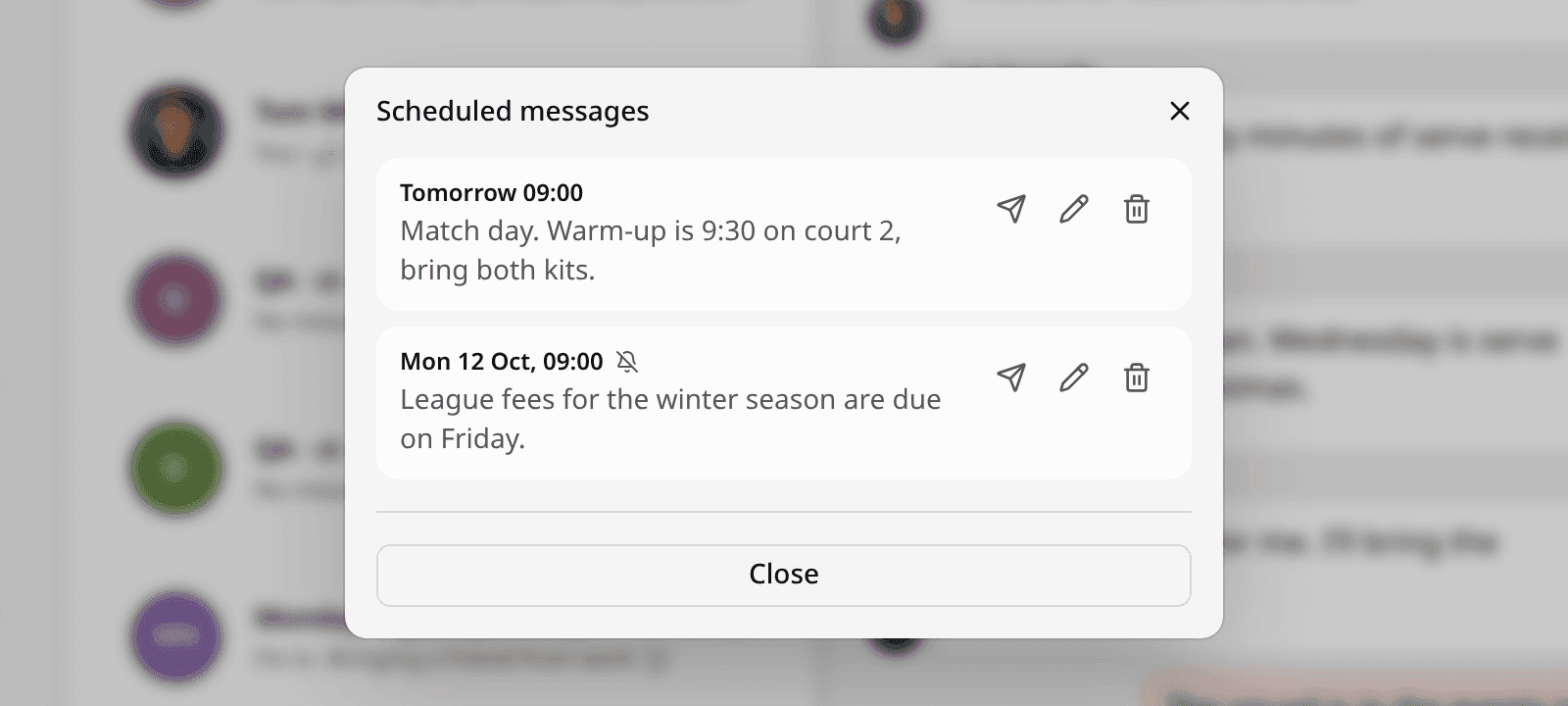
Scheduled messages wait behind a chip above the message box, and only you can see them. Until one goes out you can send it now, edit it or delete it.
For whoever runs a series
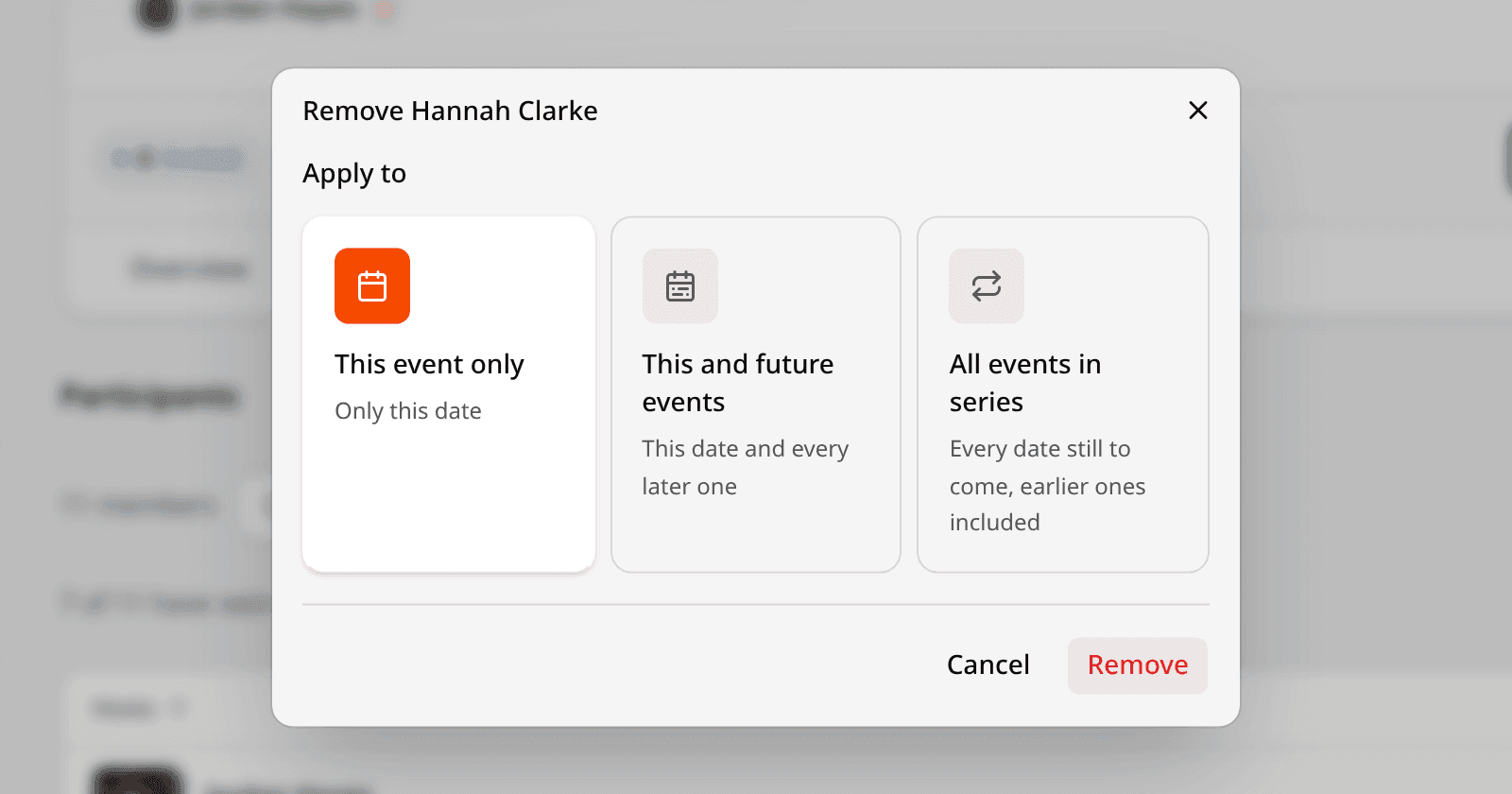
Removing someone from a repeating event now asks which dates you mean: this one, this and every later one, or every date still to come. That goes for a player, an invitation and a host.
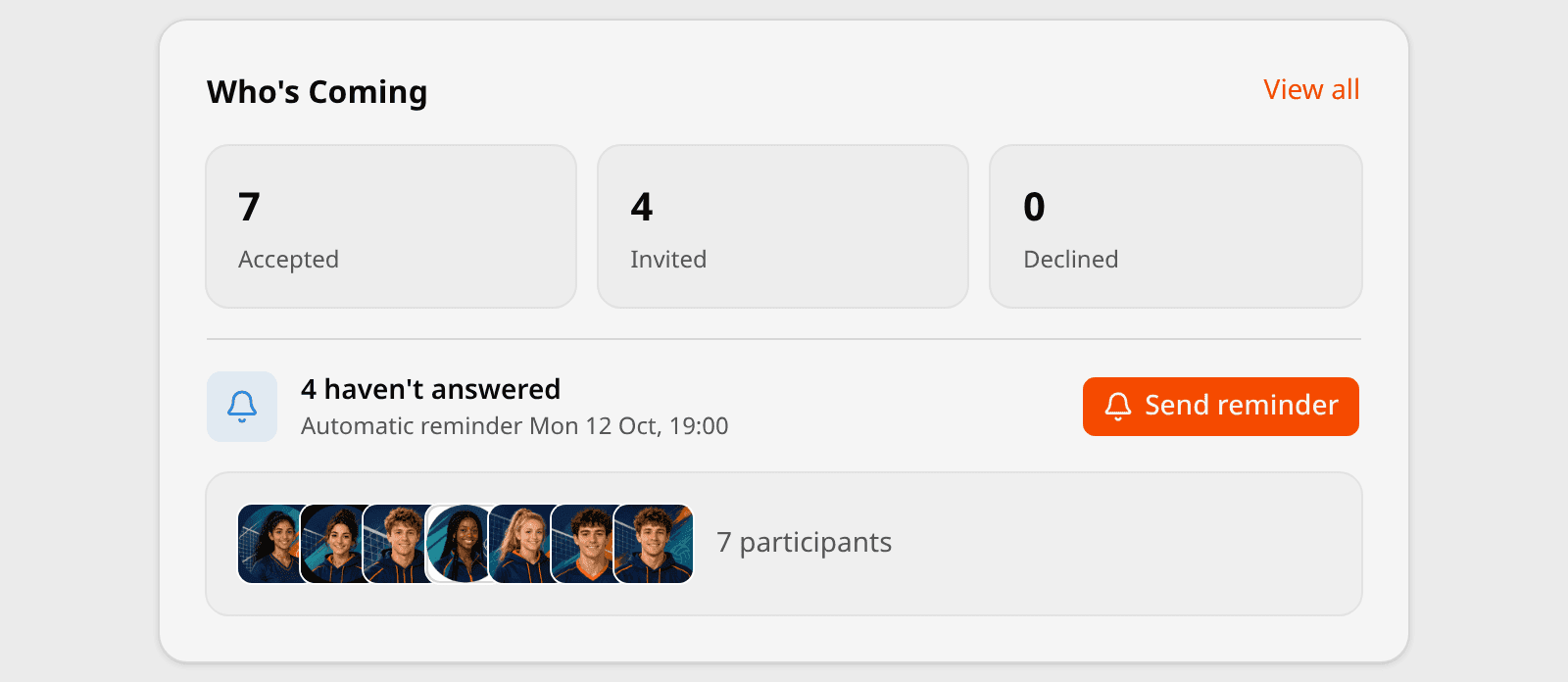
An event shows how many people haven’t answered, with a button to remind them. Clubs can also remind people automatically a day or two before, in the club’s own words.
- Move someone between an event’s hosts and its players, for one date or the rest of the series. They are told once, however many events it covers.
- Duplicate an event: the create flow opens filled in from the original, a week later.
- Club admins and coaches can invite people to every date of a series someone else set up.
- An upcoming event that nobody is invited to says so, with buttons to invite members or share its link.
Matches
The referee, second referee, scorer, line judges and helpers you name on a match are saved with it. Each one with an account is invited to host the match, and the scorer can keep the score.
Anyone can follow a match to hear when it is cancelled, back on or moved, without taking a place on it.
Club memberships
Parents can buy a club membership for their children, whether or not they play themselves, and change who each membership covers. Clubs can keep a plan for the players of chosen teams or groups, and members see only the plans they or their children can take.
If a payment fails, put in a new card, pay what you owe and get the membership back straight away. Members are told when a membership is approved, starts, is about to renew or has a payment fail, and club admins see who holds each one.
Paying
On the phone, pay for an event or a membership with Apple Pay or Google Pay, straight from the payment sheet. Organisers are told when a player pays.
When an event is full, you can join its waiting list in the app, see your place in the queue, and see when to pay by once a place is held for you.
Around the app
- Right after creating a club you get an Add your players step: an invite link or QR code, a registration link, or a spreadsheet import.
- Joining a club through an invitation or a link no longer adds you to all of its upcoming sessions. When a club accepts a registration, it picks which sessions the new member is invited to.
- On the phone, sign in with a code sent to your email instead of your password, or create an account the same way. Signing up on the web takes one password field and only your name.
- Tournament organisers choose which prizes their tournament gives out, and the tournament page lists them.
- A new reward says what it was given for. Coaches earn the Tactician pin for their first tactics board.
- The app icon on iPhone shows a badge for unread chats, alerts and invitations.
- Drills imported from a spreadsheet keep the bullet points and numbered steps you wrote in the sheet.
Fixed
- Declining an event, leaving it or being removed gives up the team spot you held, and the next player waiting gets it.
- A repeating event keeps the capacity you set, instead of every date being unlimited.
- Edits in an event’s settings on the web are no longer wiped when the page refreshes itself.
- Cancelling a series sends each player one notification, not one per date.
- People who declined or gave up their place no longer show as owing the fee.
- Closing the payment screen without paying no longer clears what you owe.
- Parents can open their child’s private club on the phone, and see the teams, hosts and comments on their child’s events.
- A co-host can open an event’s settings, cancel it and duplicate it.
- A team’s Manager can add, change and remove the team’s members.
- Group chat admins can add several people at once, and a poll’s list of voters updates as people vote.
- Editing a post no longer turns its @mentions into plain text.
- On the phone, searching events no longer flashes the list or drops the keyboard, and the Events tab no longer crashes when its list updates while you scroll.
- Pages the browser has translated keep working instead of ending on an error screen.