Your child plays volleyball. Now what?
Your child has joined a volleyball club, and the club runs on Spike. You don’t need to join the club yourself to keep up. Set up your family once, and their teams, sessions and chats open up to you. Here is how it works, from the first session to their eighteenth birthday.
First, how old are they?
Spike looks after children differently at different ages, so start there.
- Under 13. Children under 13 can’t sign up on their own. You create a profile for them from your account, and you look after it: their sessions, their payments, their details.
- 13 to 17. Teenagers can have their own login. You can add them and invite them to set a password, or they can sign up themselves and link their account to yours. Either way, you stay their guardian.
- 18 and over. They have their own account, and no guardian.
If a child under 13 tries to sign up, the app stops them and gives them a link to send to you instead.
Set up your family
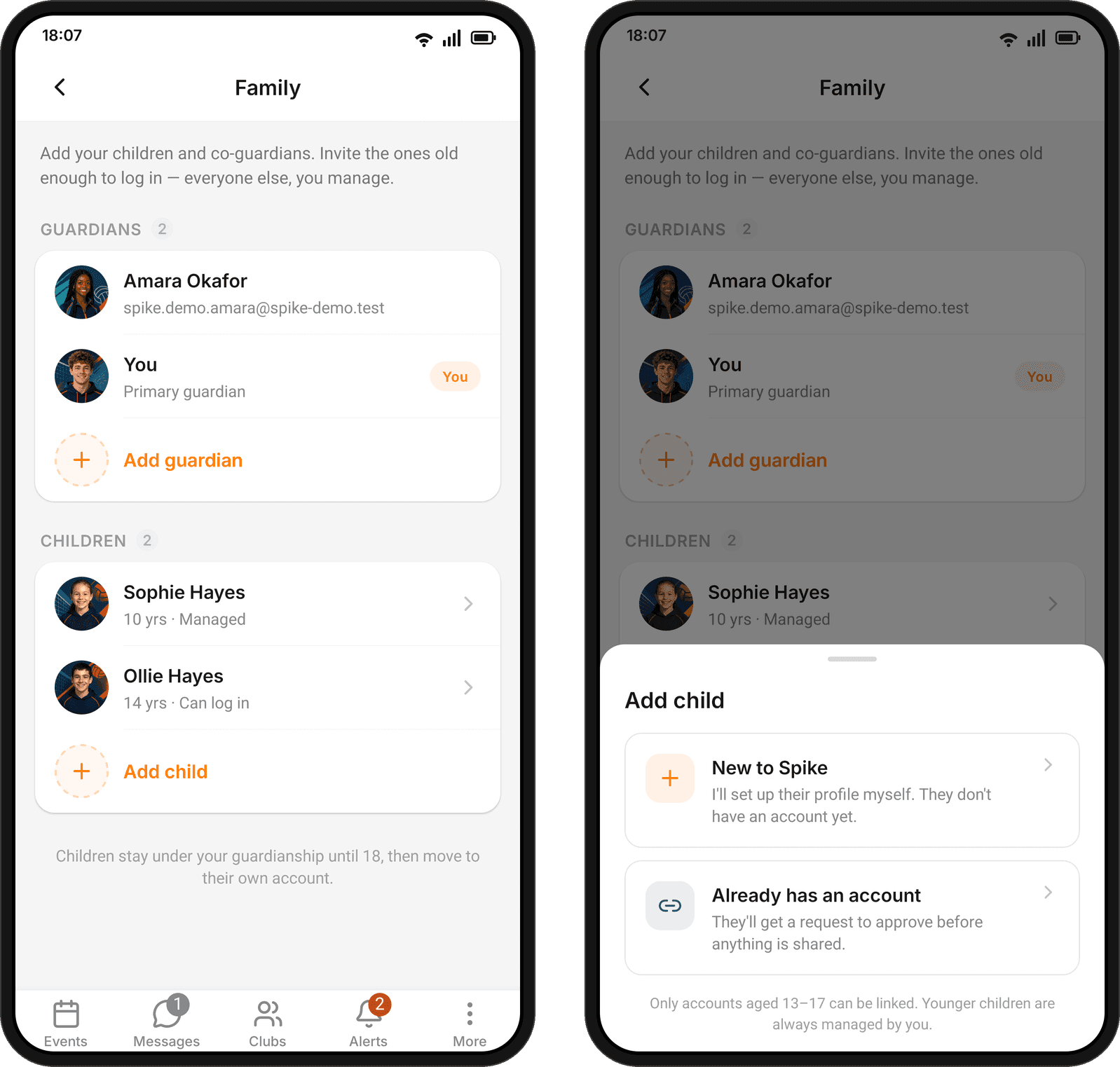
Everything lives under Family. In the app, open More, then Settings, then Family & Children. On the website, go to Settings, then Family.
Create your family and give it a name. You are its first guardian. If you choose Parent / Guardian when you sign up in the app, it asks about your children straight away and sets the family up as you add them.
Under 13: you run their account
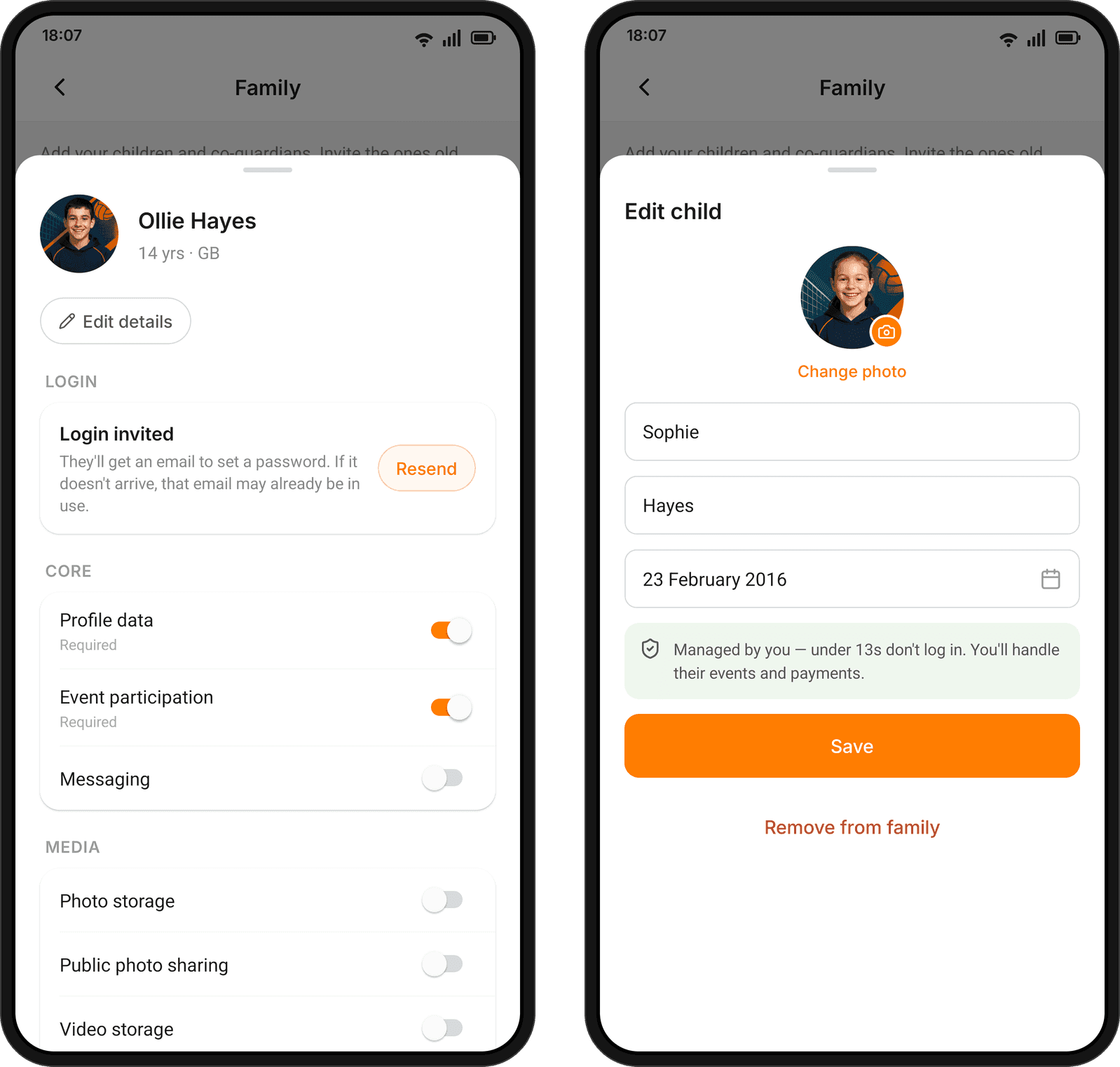
Tap Add child, then New to Spike. Add a photo, their name and their date of birth. Take care with the date: it decides what their account can do.
That is all it takes. Your child now has a real Spike profile, without a login of their own. Their coach can add them to a team and invite them to sessions, and you hear about every invitation.
On the website, Add child also takes an optional player profile: their position, dominant hand, level and height.
Adding a child switches on the consents Spike needs for you to act for them: their profile, taking part in events, and payments. You can see the full list with your child in Family.
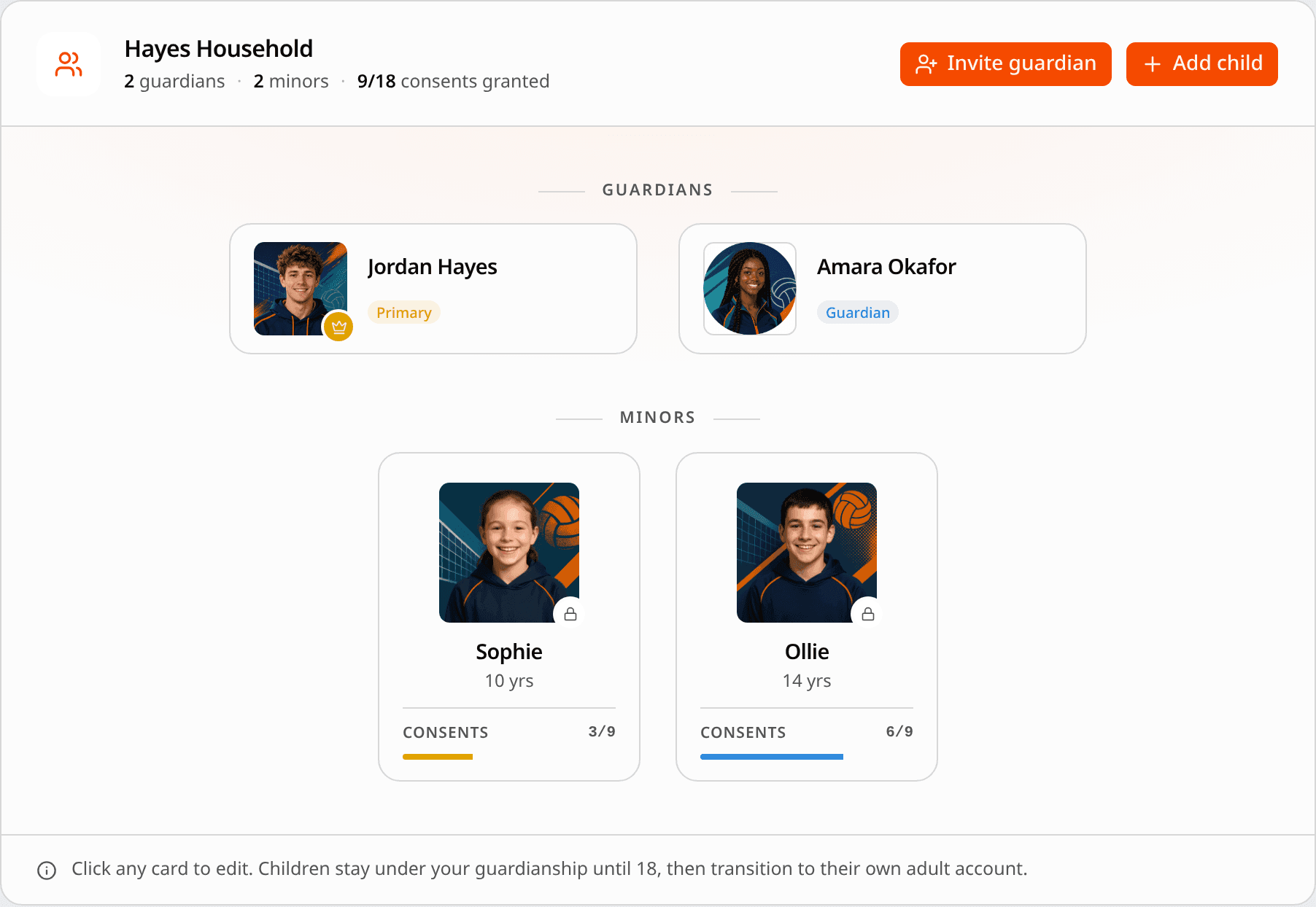
13 to 17: a login of their own
A teenager can sign in to Spike themselves and still have you as their guardian. There are two ways to get there, both in the app.
If they are new to Spike, add them like any child and include their email. Or open them in Family later and tap Allow login. They get an email to set a password. The link lasts 24 hours. If it runs out, you can send another, or they can use Forgot password.
Once they have set a password, the login is theirs, and you can’t change its email. You don’t lose anything: a login changes who can sign in, not who their guardians are.
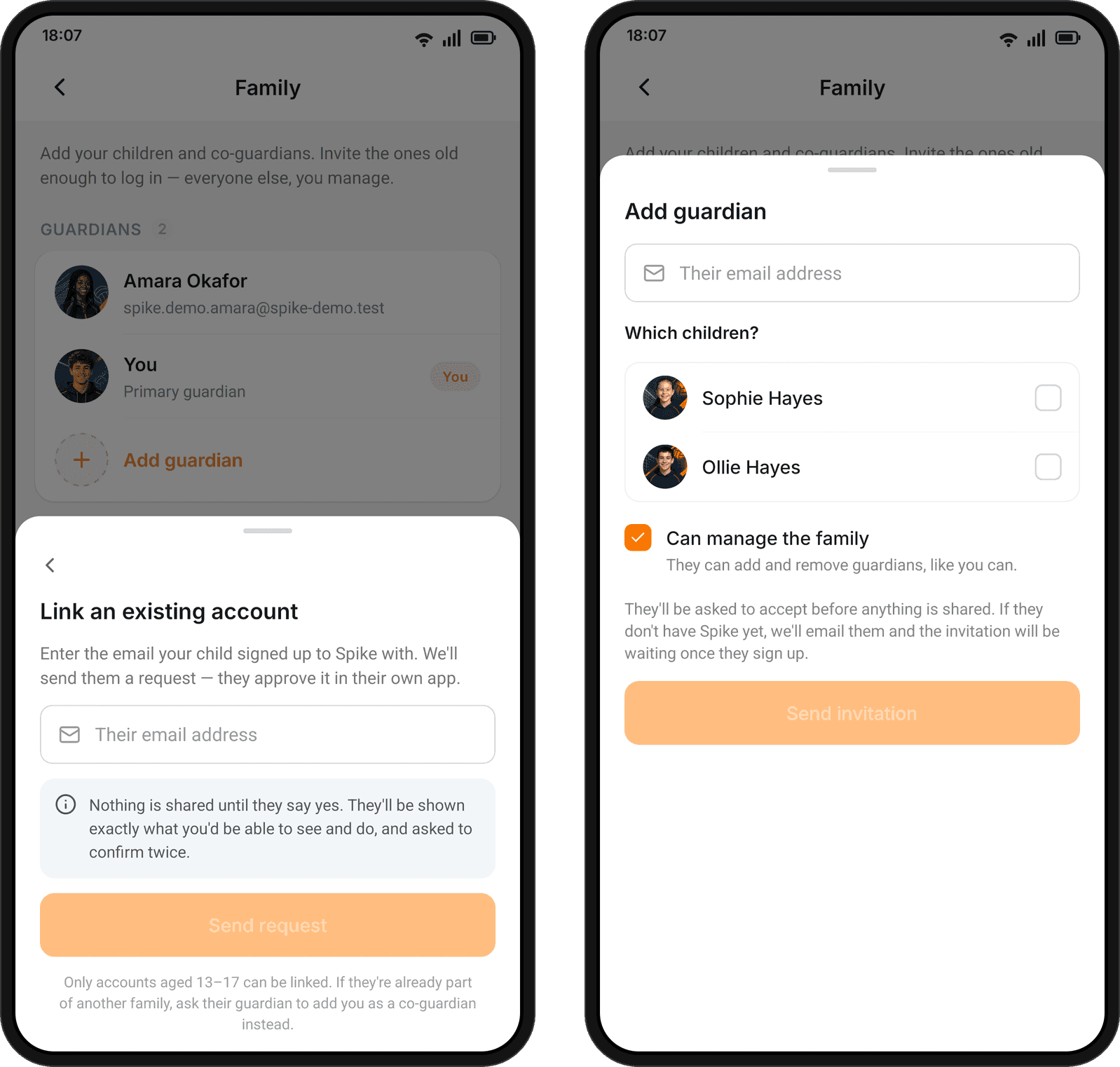
If they already have an account, tap Add child, then Already has an account, and enter the email they signed up with. Spike sends them a request. It never tells you whether that email belongs to anyone, so the form can’t be used to look children up.
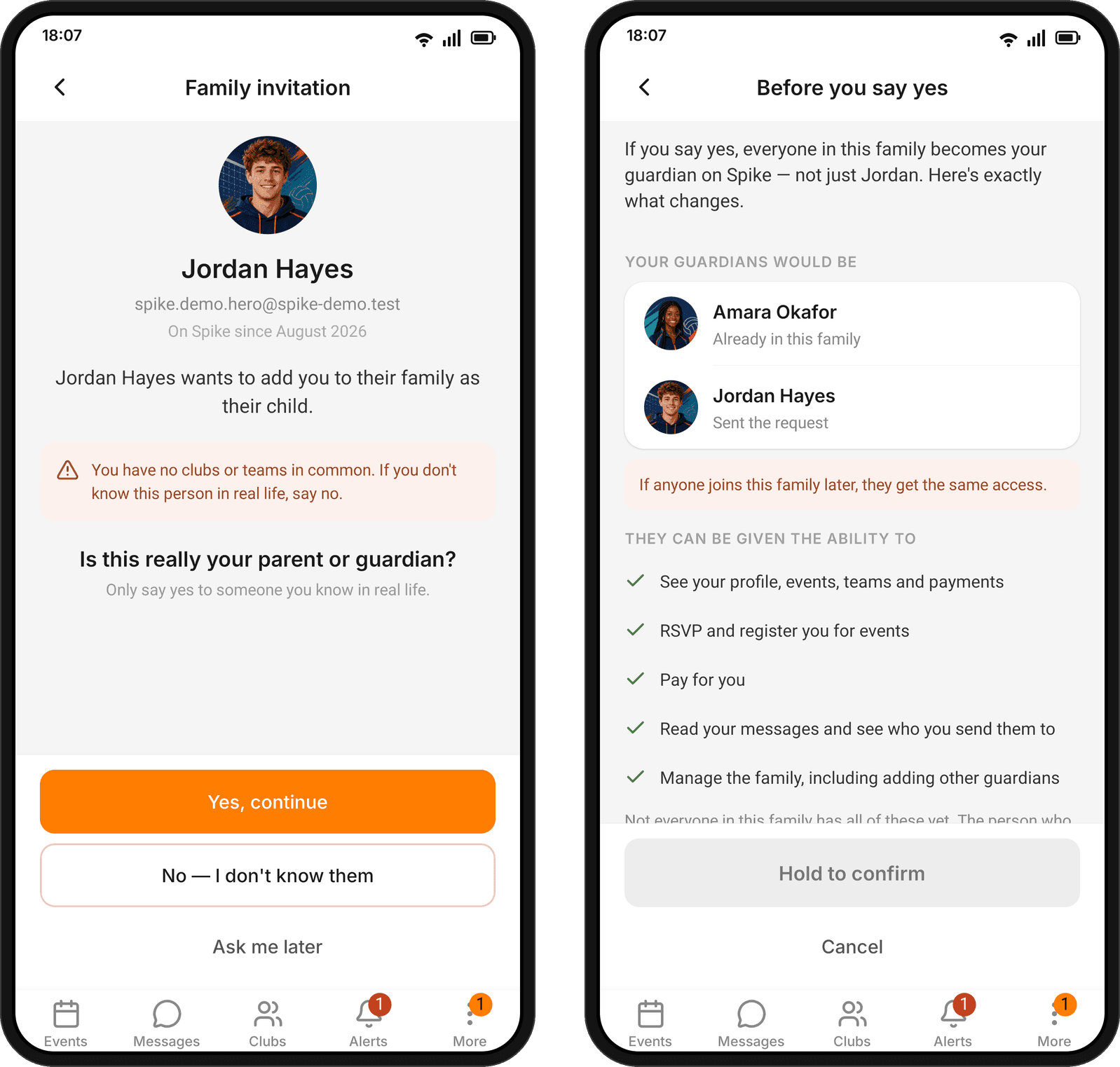
Then it is your teenager’s decision. They see who is asking and whether you share a club, and they are asked plainly whether you are really their parent or guardian. If they say yes, they see exactly what you will be able to see and do, and hold a button to confirm. If they don’t know you, one tap stops you asking again.
A request lasts 14 days. If they aren’t on Spike yet, they get an email instead, and the request is waiting once they have signed up and confirmed their email.
When your teenager asks you
It can work the other way round. When a 13 to 17 year old sets up their profile in the app, they can name a guardian by email, then or later from Family.
Before they send it, the app tells them what a guardian can do: see their profile, events, teams and payments; answer and register for events for them; pay for them; read their messages and see who they send them to; and manage the family. It also tells them what a guardian can’t do: sign in as them, or change their password.
You get a notification, or an email if you aren’t on Spike yet. Sign up as you would anyway, and the request is waiting for you. Accept it, and you are their guardian.
Bring in the other adults
Most children have more than one grown-up. Add a second parent, a grandparent or a carer with Add guardian: their email, and which of your children they will help with.
Can manage the family starts ticked. It lets them invite other guardians, as you can. Untick it if they only need to help with the children.
They are asked before anything is shared, and shown exactly what they will be able to do for each child. If they don’t have Spike yet, we email them, and the invitation waits until they sign up. A family can have up to five guardians.
Answer and pay for the whole family
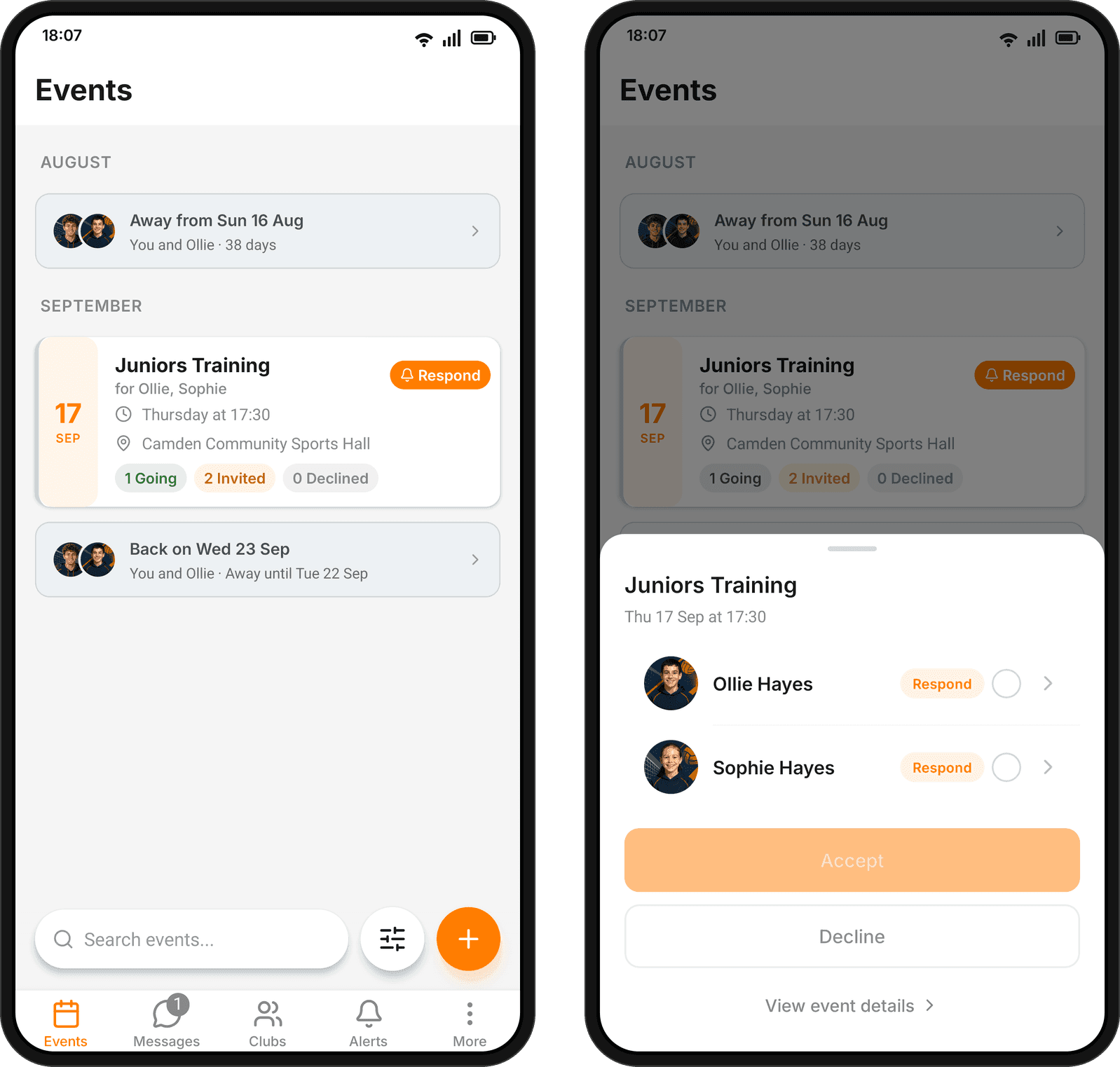
Open the Events tab in the app. Your sessions and your children’s sit in one list, and each row says who it is for and whether anyone still needs to answer.
When one child is invited, tap the session and it opens as them. The button carries their photo, and Accept answers for them. When several of you are invited, Respond for your family puts everyone on one sheet, with accept, decline and pay for each person.
Paying for several children runs one payment after another, one for each child. You pay with your own card, and the payment is recorded as yours.
The organiser can see that you answered, and a note you leave when declining carries your name. A notification about your child’s session opens it as your child, so the answer is one tap away.
Away for a week?
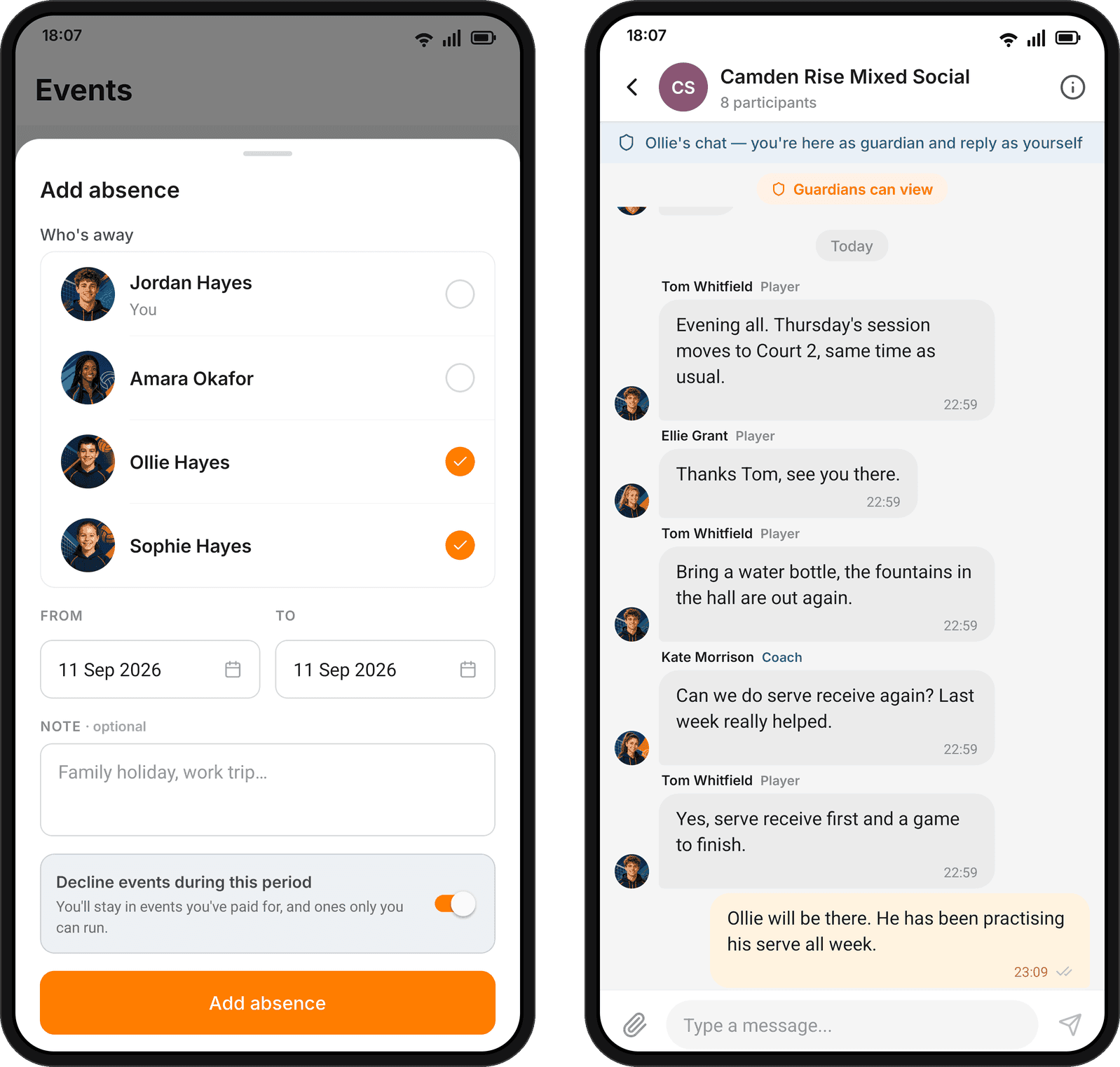
In the app, tap + on the Events tab and choose Add absence. Pick who is away — you, one of your children, or the whole family — then the dates, and a reason if you like.
Turn on Decline events during this period, and Spike answers the invitations that fall in those dates. It shows you what it will decline before you save, and sessions you have already paid for stay as they are.
Join a club together
When you join a club from the app, you choose who is joining: you, your children, or all of you. Each child gets their own form and player profile, and the club sees one request from your family.
When a club invites your child, the invitation says who it is for. Accept it for them in the app or on the website. You don’t have to join the club yourself.
Their chats
Your child’s chats appear in your own chat list, marked with their name: team and group chats, event chats, and their direct messages.
You can read them, and you can reply. You always write as yourself, and your messages are marked as a parent’s — “Leo’s parent”. In a private chat between two children, you can read but not write.
None of this happens behind anyone’s back. In the app, your child’s chats tell everyone in them that guardians can view. A teenager who links their account to yours is told before they say yes. Chat notifications come to you as well; mute a chat if that is too much.
Talk to the coach
You don’t need to be a club member to reach your child’s coach. If the club is verified on Spike, you can message the coach directly. Coaches can see which adults stand behind each child, and message you back.
Being a parent opens a line to the adults in your child’s club, not to other people’s children.
What the club sees
Coaches and club admins see a Guardians list alongside each team’s players, with lines like “Parent of Leo and Mia”. It is how they know who to call.
Staff can reach every parent at once by mentioning @guardians in a post or a team chat. Parents are only invited to a session if staff choose to add them.
Clubs also look after their own spaces. Staff can stop a parent posting in a team, take them out of its chat, or remove their access to it. Their child’s place in the team never changes.
What stays with your child
You can’t sign in as your child or see their password. Feedback and evaluations that their coaches share go to them, not to you.
Growing up
At 13, Spike lets you know your child can have their own login.
A teenager can leave the family from Family in the app. It is their account, and that is their call.
At 18, guardianship ends by itself and the account becomes fully theirs. Spike reminds you 30 days before. If they have never had a login of their own, set one up before then, so they can carry on using Spike.
Spike is free for clubs. In the app, families live under More → Settings → Family & Children; on the website, under Settings → Family. Teen logins, linking accounts, answering and paying for your children, and absences are in the app.